
iPhone Wallpapers: 25 Aesthetic Picks for a Prettier Lock Screen
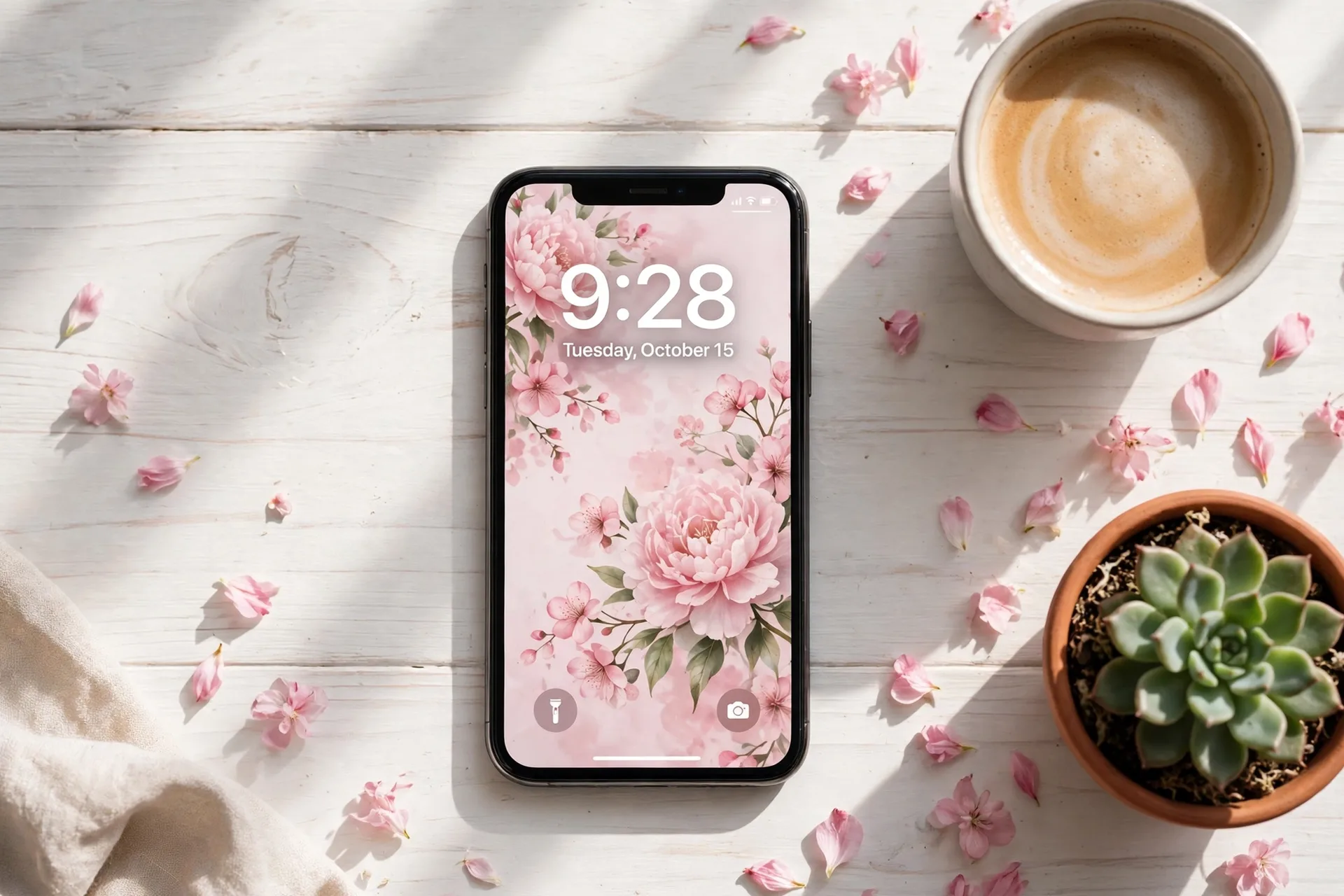
You look at your phone more times a day than you look at your own front door. It’s the first thing you see before coffee, the screen you stare at in every waiting room, the glow on the nightstand at 2 a.m. when the toddler is negotiating bedtime. And yet most of us are still running the wallpaper that came in the box — or a random photo that looked fine until iOS cropped off our child’s forehead.
A good iPhone wallpaper is a two-second upgrade that lasts for months. One picture that makes you exhale: a soft floral behind the lock screen, your kid’s grin under the clock, a calm sage-green field that holds steady while everything else in the day is loud. I’ve redone ours many times since our first was born, and every time it takes under five minutes. This guide gives you twenty-five picks worth your time, the right size for your exact iPhone, the exact taps to set any of them — and where to find more for free whenever you want a fresh season.
Heads up: there are no affiliate links in this guide — every source below is free, and nobody paid to be here. The MamaKinder collections linked below are the whole point of this hub: grab them without signing up for anything.
Quick Picks: Where to Start
| When this is your problem… | Start with |
|---|---|
| You want the whole thing done in one click-by-click read | Section: Set It Up in Two Minutes |
| Your current wallpaper is blurry or cut off weirdly | Section: The Right Size for Your iPhone |
| You just want pretty picks, organized by mood | Picks 1–25, starting with Floral & Botanical |
| You’d rather see your kid’s face every time you unlock | Make It All Match — the Photo Shuffle trick |
| You want phone, icons, and widgets to all match | Section: Make It All Match |
| The wallpaper you set keeps looking wrong | Section: Quick Fixes |
Why a Wallpaper Deserves Five Minutes
Your lock screen is the room you visit most: the view behind everything, the time you glance at a hundred times a day, the first thing you see in the morning. A wallpaper you chose on purpose — right size, sitting nicely behind the clock — makes that room feel like yours instead of a factory default. It’s the smallest decor project in existence: no paint, no commitment longer than the next whim. And since wallpapers are free, “redecorating” is a Thursday-evening, kids-asleep activity that costs exactly nothing and pays you back every single morning.
The 25 Picks, By Aesthetic
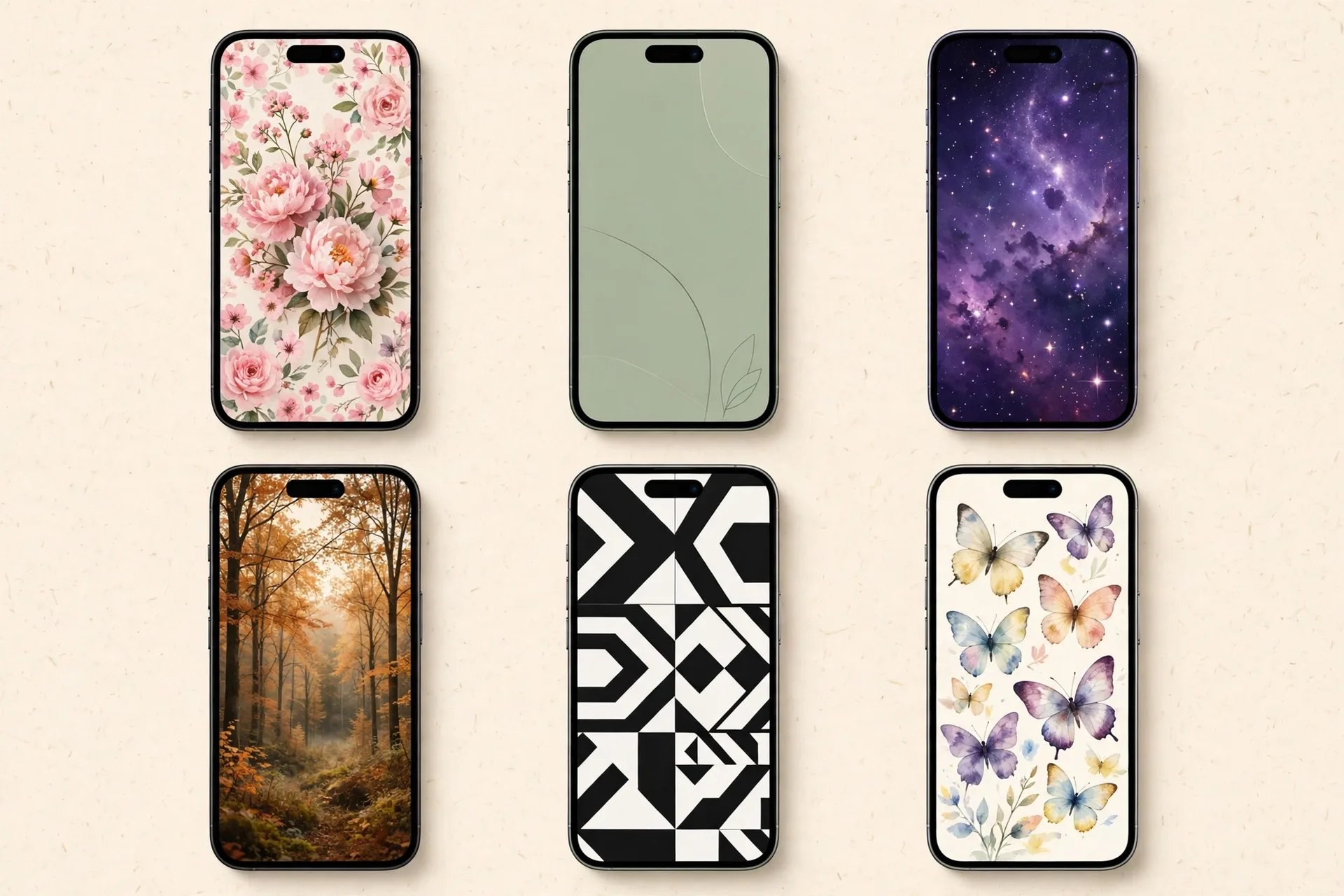
Every pick below links to its own full MamaKinder collection — free downloads, sized for iPhone, no account. Start with the mood you’re in; the rest wait for the season change.
Floral & Botanical Calm
1. Floral iPhone Wallpapers. The eternal favorite, and the hardest to get tired of: soft petals, garden roses, pressed-flower textures. Florals sit beautifully behind the clock and never fight your app icons. See the Floral iPhone Wallpapers collection.
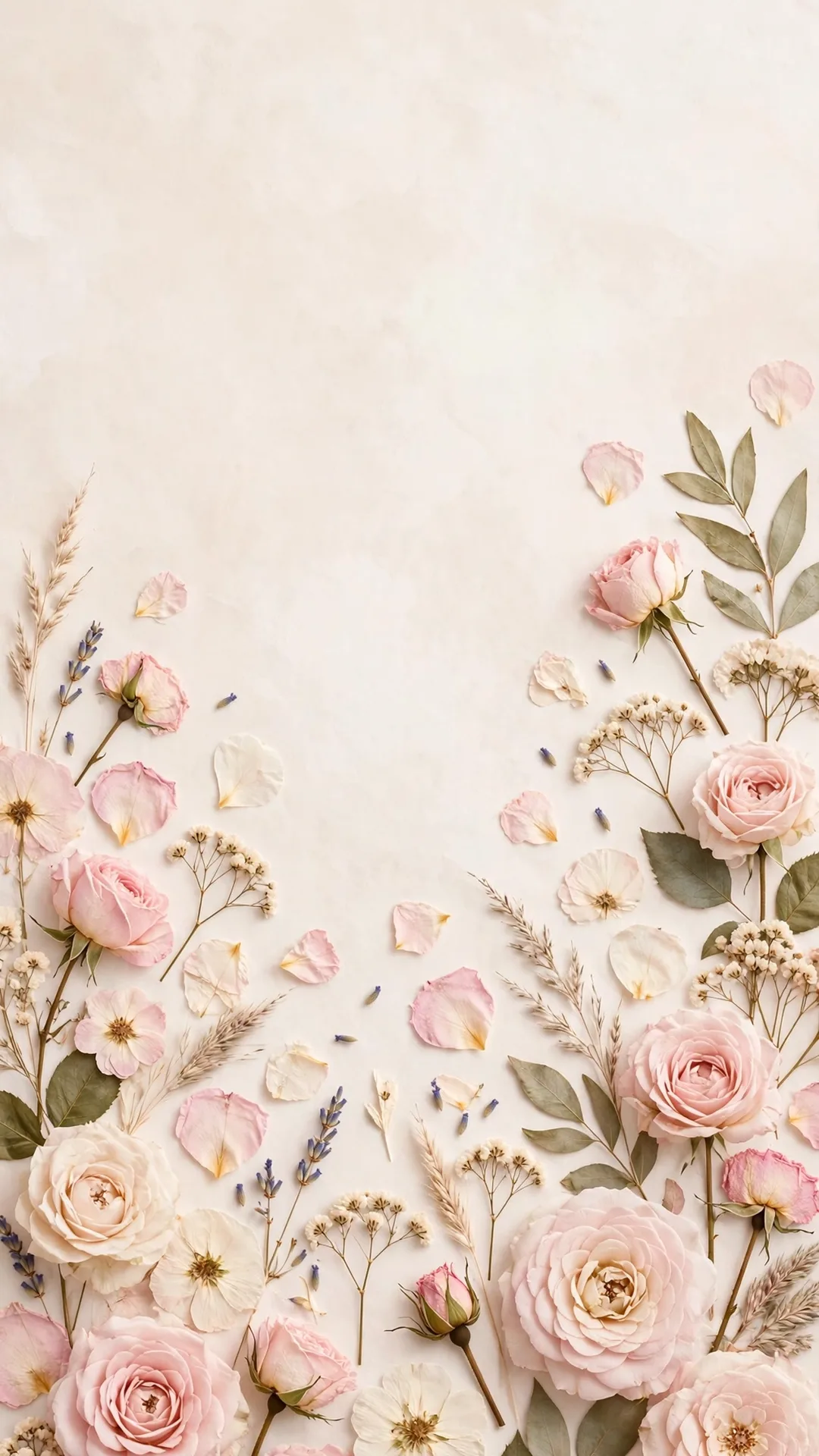
2. Watercolor iPhone Wallpapers. Floral’s artsier cousin: painted washes in pinks and blues, brushy and imperfect in the best way. Watercolor keeps color quieter at the edges, so your clock and widgets stay readable without you thinking about it. See the Watercolor iPhone Wallpapers collection.
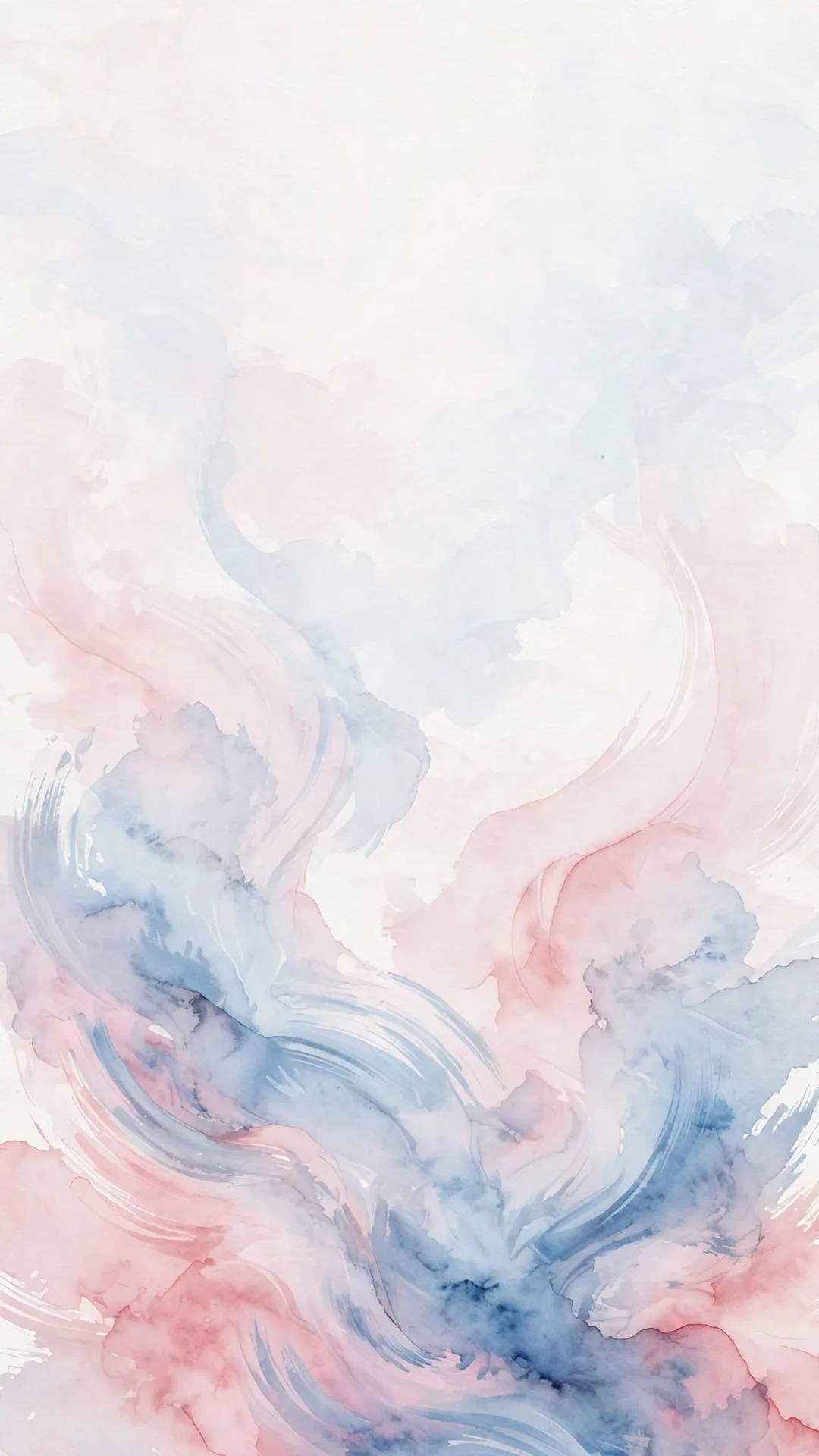
3. Lace iPhone Wallpapers. Delicate and surprisingly restful — fine lace patterns in white and cream over soft color. Lace is a texture more than a picture, so it behaves on both the lock screen and behind your icons. See the Lace iPhone Wallpapers collection.
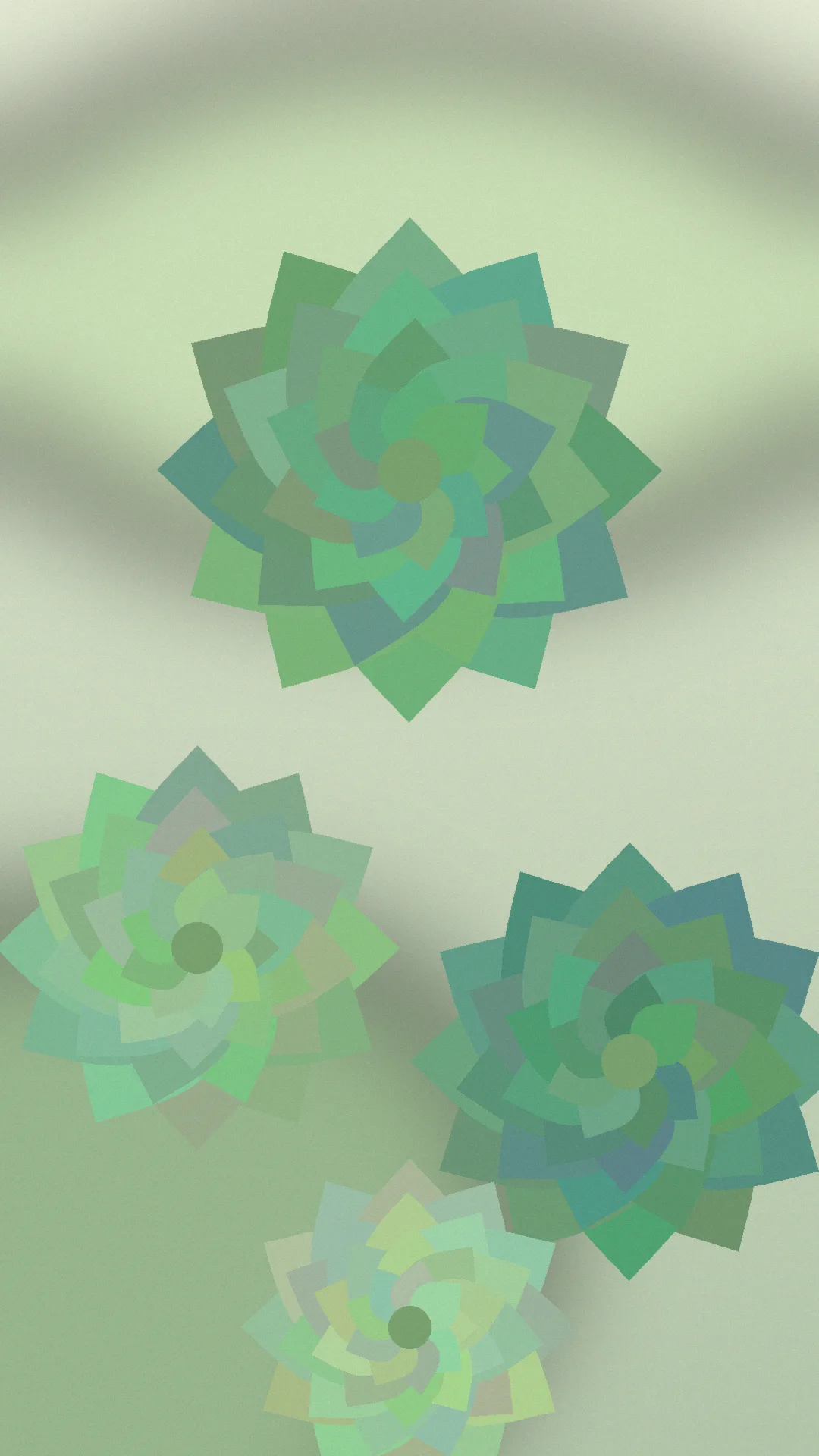
4. Succulent iPhone Wallpapers. For the plant mom whose real succulents are thriving or dying with no middle ground: plump green rosettes and desert tones that look alive without a single drop of water. See the 11 Free Succulent iPhone Wallpapers for Plant Lovers collection.
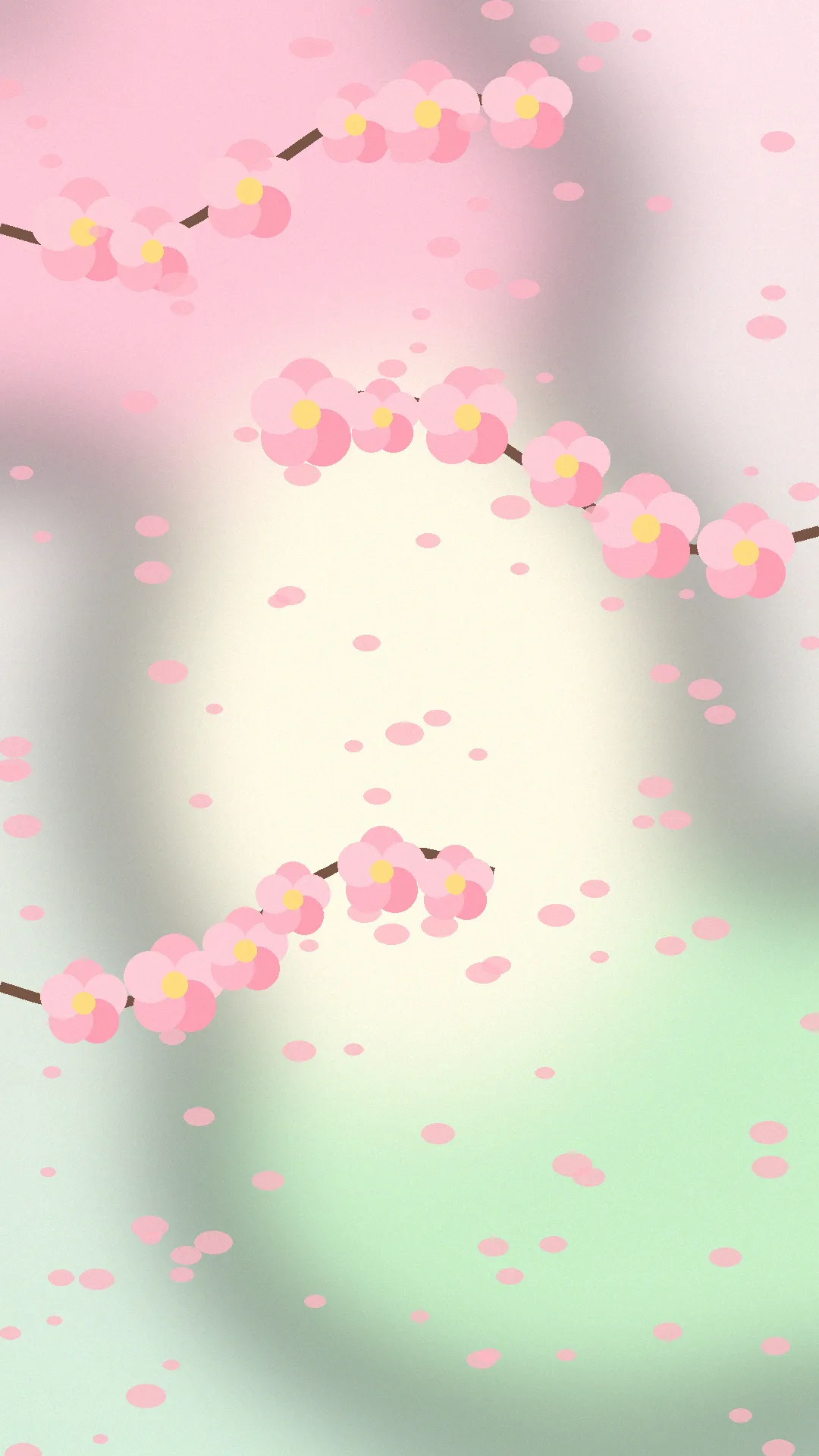
5. Spring iPhone Wallpapers. Blossoms, fresh green, everything-new energy — the wallpaper equivalent of opening all the windows after winter. Light, airy, and full of small hopeful details. See the Spring iPhone Wallpapers collection.
Minimal & Pattern
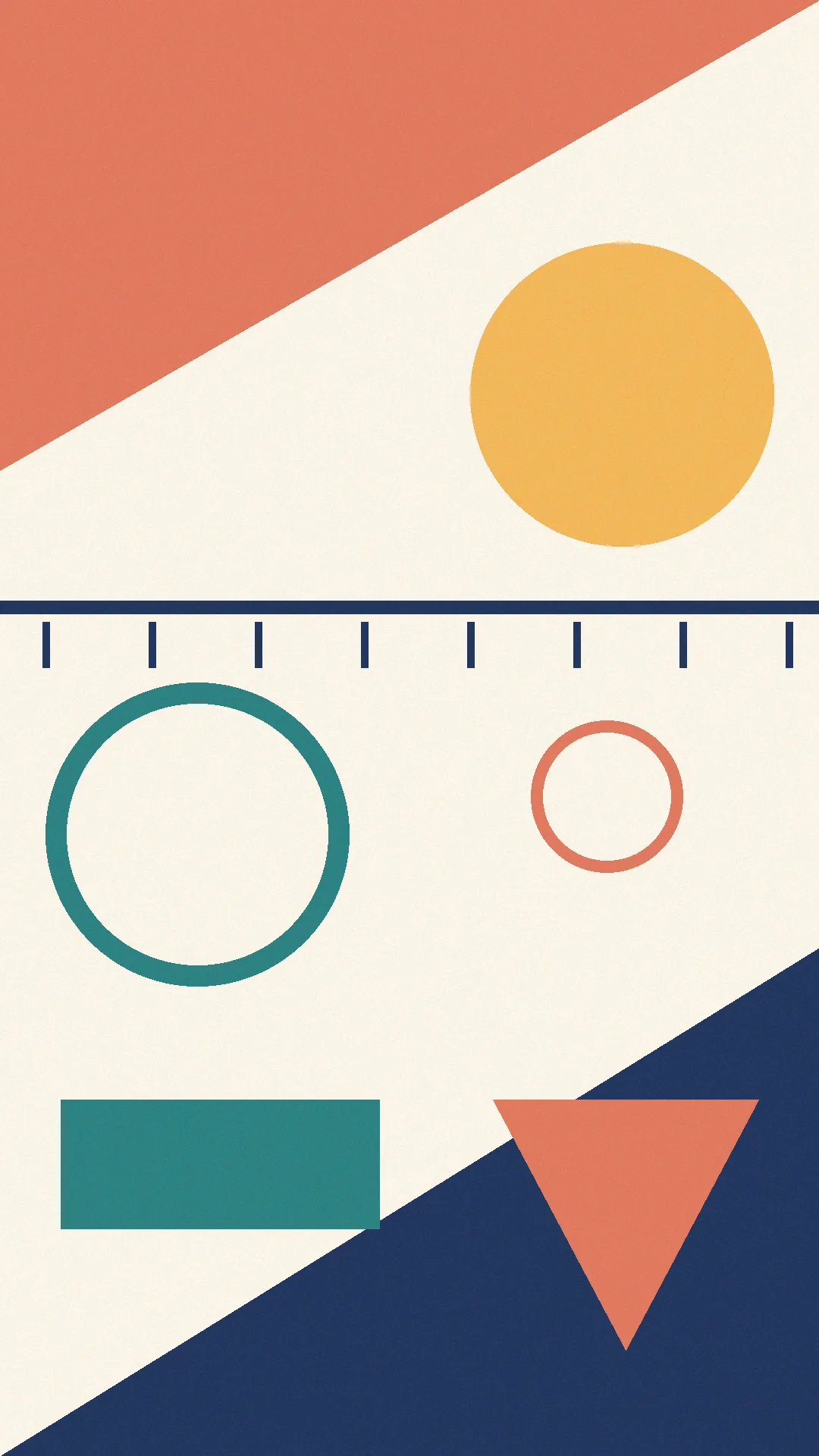
6. Geometric iPhone Wallpapers. Clean lines, repeating shapes, modern calm. Geometric patterns make your whole phone feel organized even when your home screen is a battlefield of apps — the pattern holds the line so you don’t have to. See the Geometric iPhone Wallpapers collection.
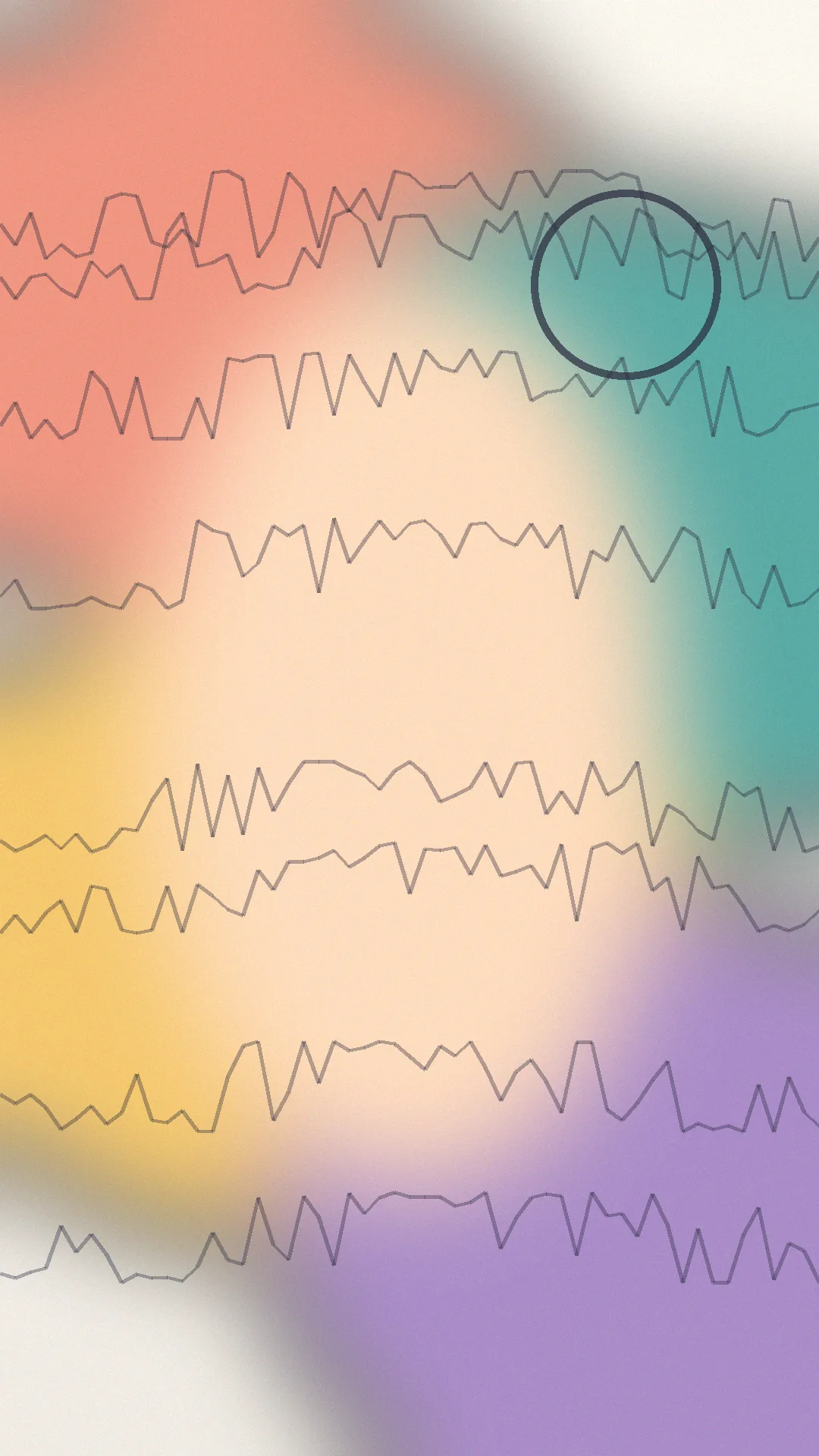
7. Abstract iPhone Wallpapers. Color and movement with no subject to get cropped: flowing gradients, ink swirls, soft blobs that look expensive. Abstract is the most forgiving category for the wrong-size image, because there’s nothing important to cut off. See the Abstract iPhone Wallpapers collection.
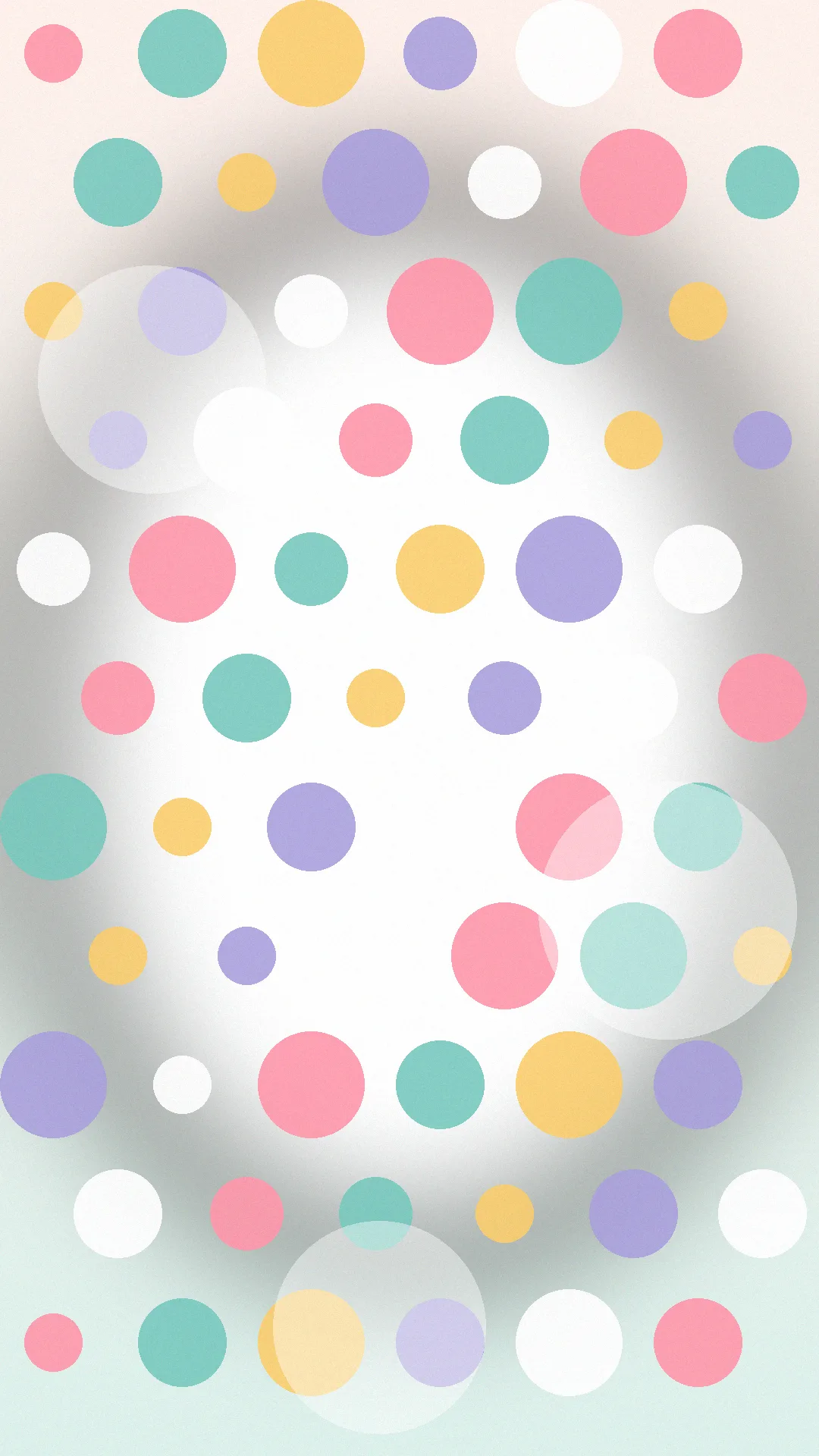
8. Polka Dot iPhone Wallpapers. Cheerful, retro, more sophisticated than the name suggests — tiny dots on cream, big dots on navy. Polka dots are rhythm for your eyes: calm from a distance, charming up close. See the Polka Dot iPhone Wallpapers collection.
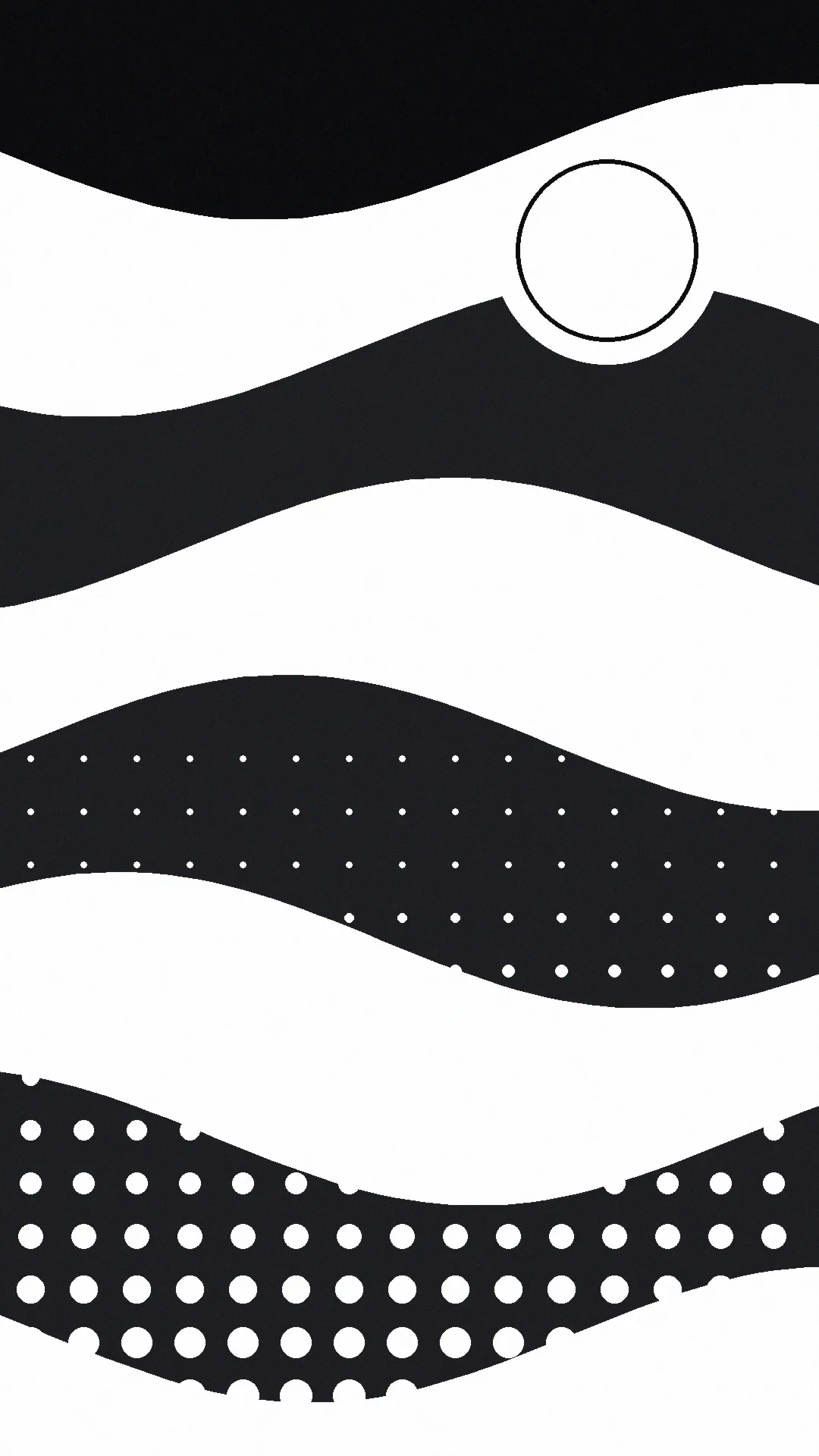
9. Black and White iPhone Wallpapers. The minimalist power move. Black-and-white looks striking on OLED screens — true black is literally the pixels turned off — and it makes colorful app icons pop. See the Black and White iPhone Wallpapers collection.
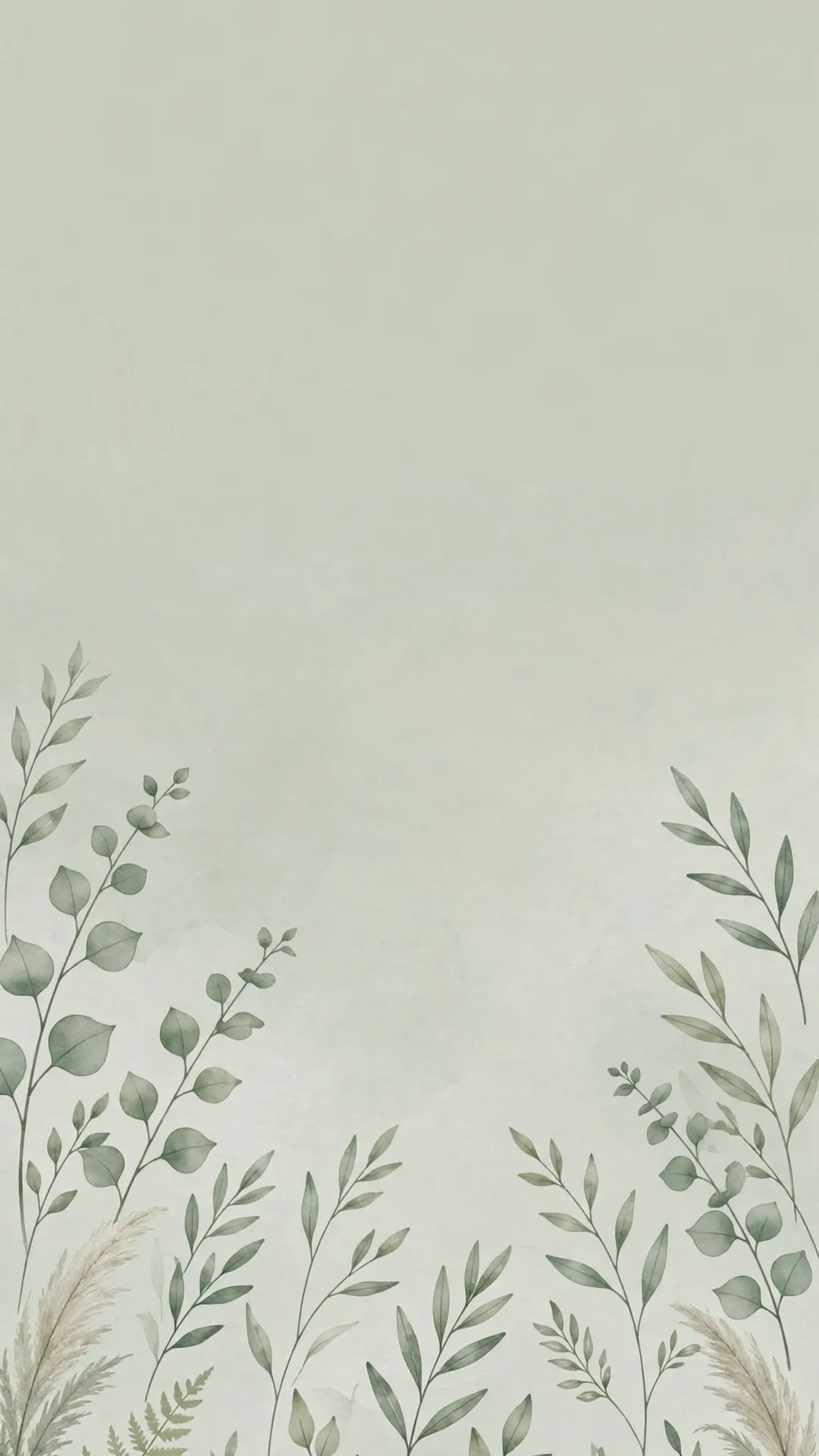
10. Sage Green iPhone Wallpapers. The calm-down color in wallpaper form: soft, desaturated, kind to tired eyes at night. It’s the color I ran during the months both kids woke before 6 a.m. — it never once felt like too much. See the 9 Sage Green iPhone Wallpapers for a Calm Screen collection.
Cozy & Nature
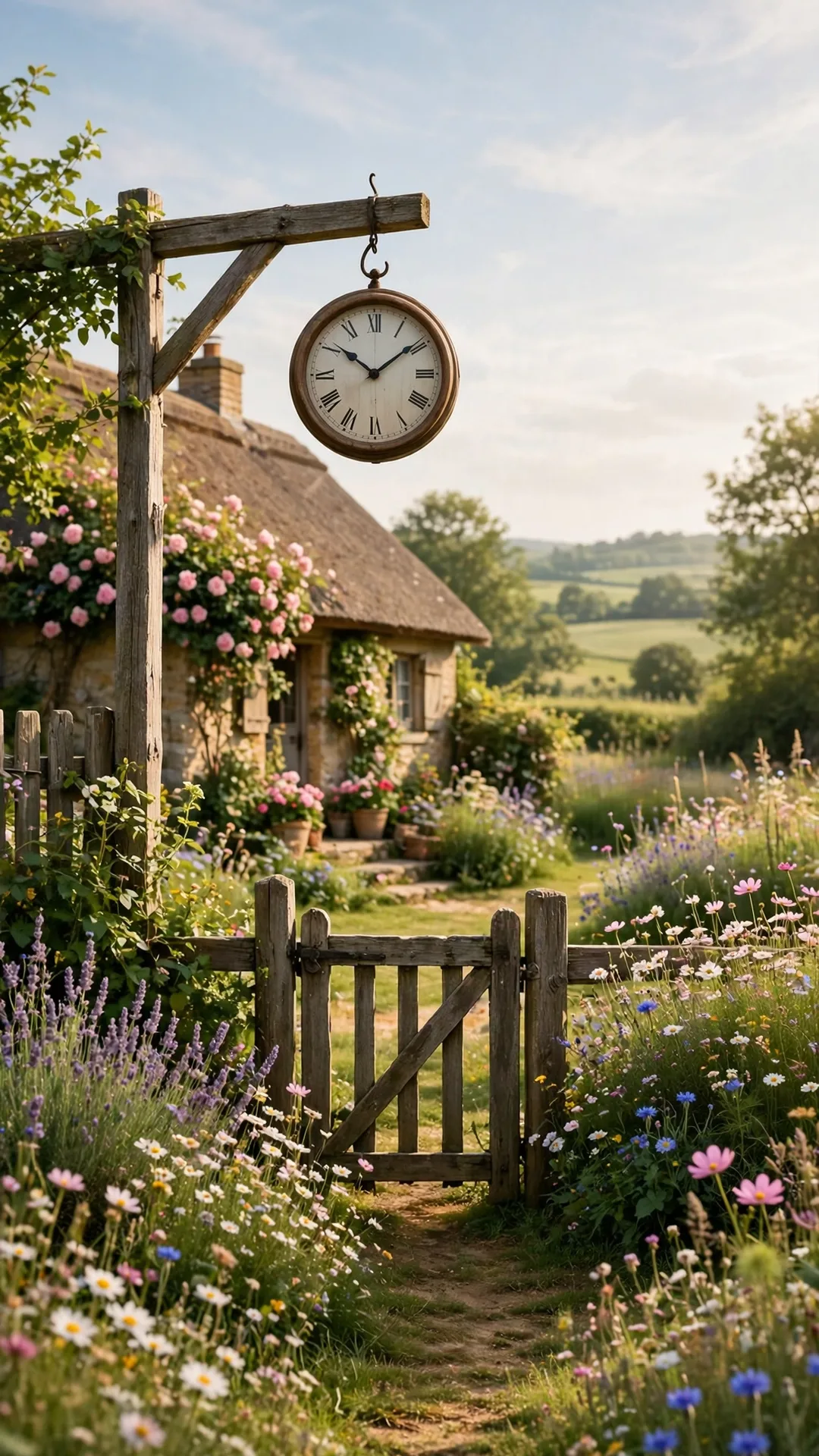
11. Cottage Core iPhone Wallpapers. Sunlit kitchens, flower meadows, linen textures — escapism that fits in your pocket. Open your phone and you’re somewhere with a garden gate. Our 4-year-old asked if the cottage in ours was real, which may be the highest praise a wallpaper can get. See the Cottage Core iPhone Wallpapers collection.
12. Winter iPhone Wallpapers. Snowy branches, frosted pines, warm-window glow — the December mood without the December weather. These look especially good with Dark Mode on, when the whites glow and the blues go deep. See the 15 Cozy Winter iPhone Wallpapers (Free Download) collection.
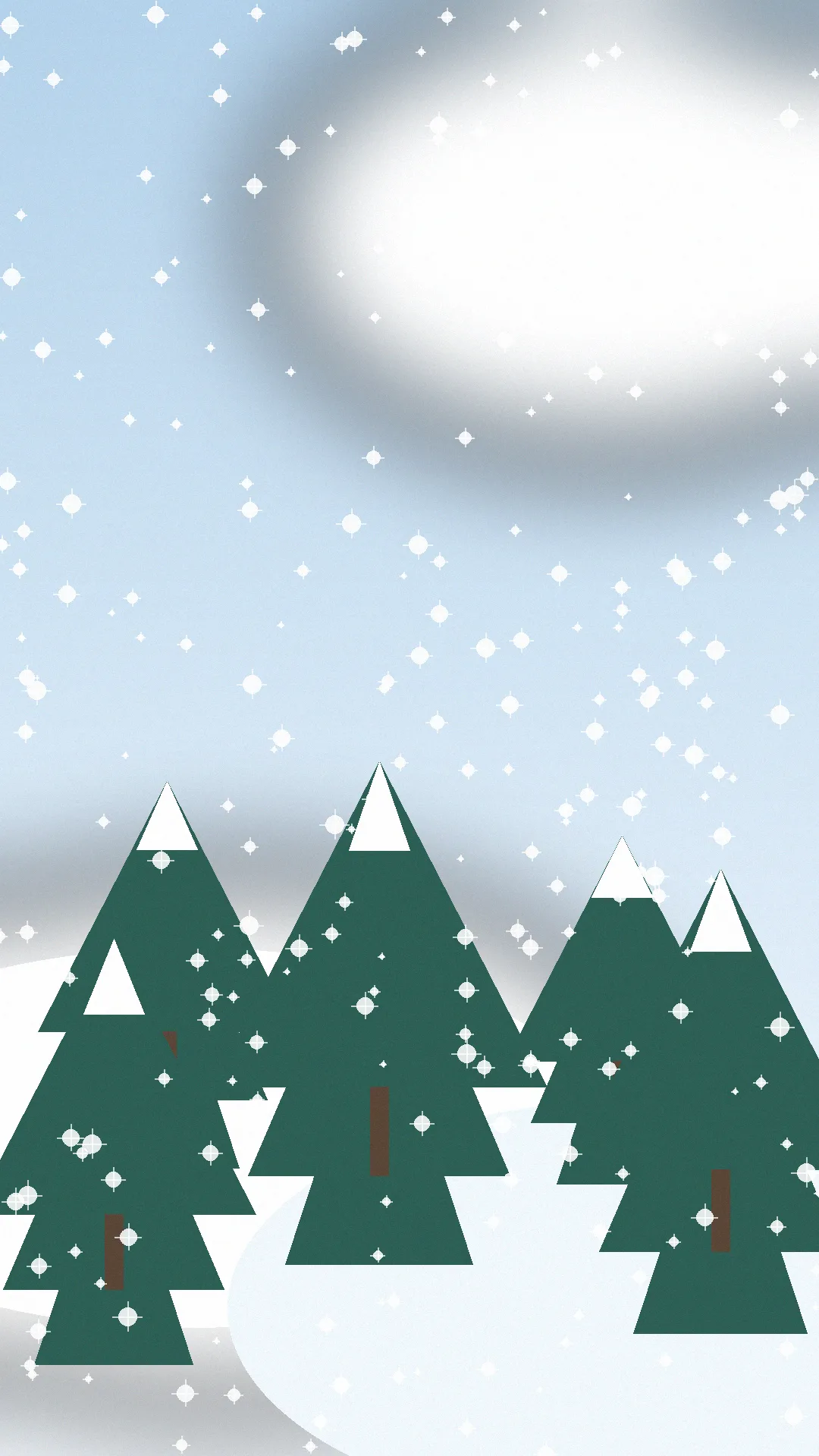
13. Forest iPhone Wallpapers. Tall trees, misty paths, green quiet. I reach for forest when my brain is overstimulated — a vertical stand of trees lines up perfectly with a phone screen, and the green is genuinely restful between tasks. See the Forest iPhone Wallpapers collection.
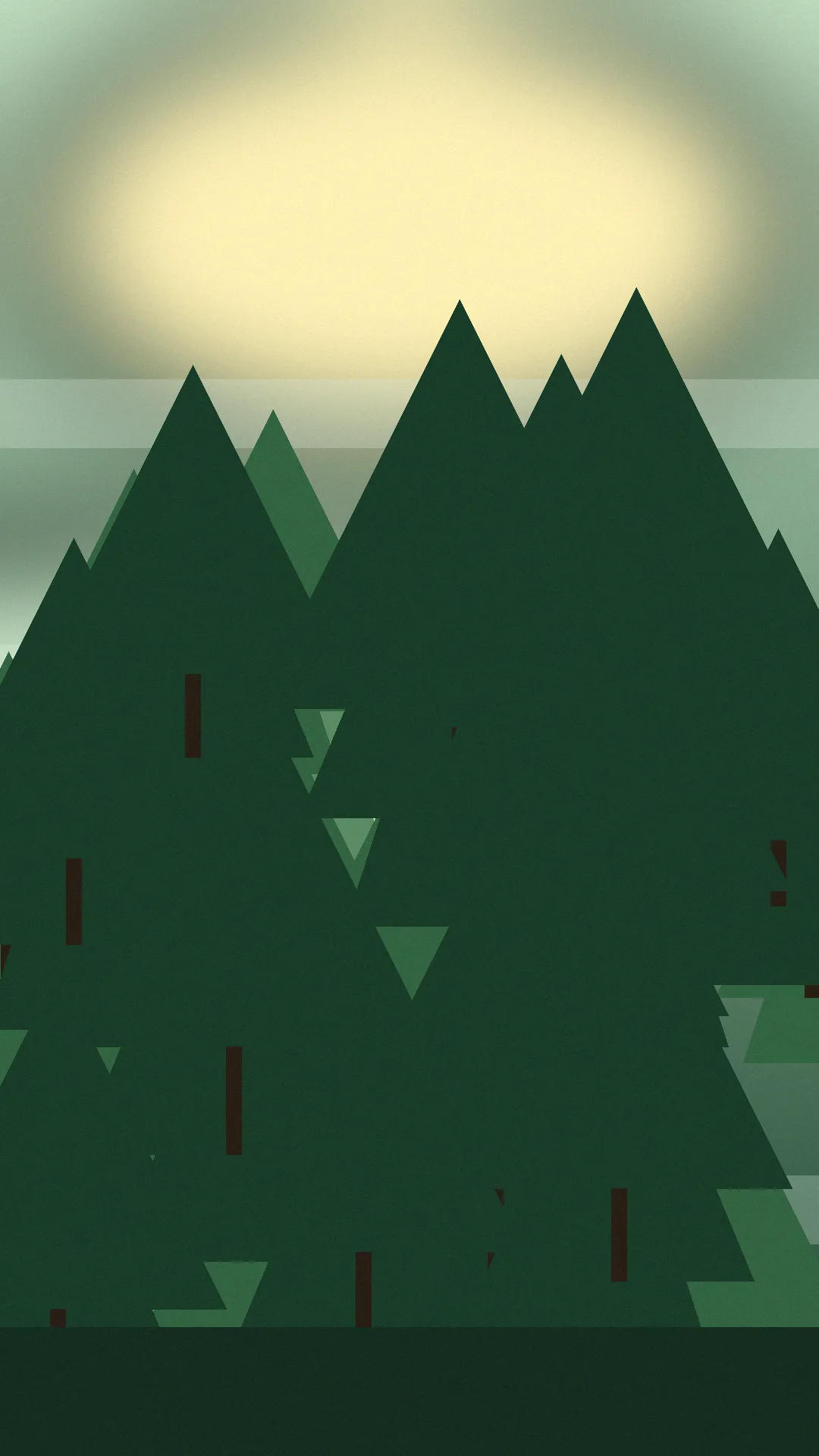
14. Coastal iPhone Wallpapers. Salt air in wallpaper form: pale sand, sea glass, driftwood tones. Coastal reads as breezy rather than touristy, which is why it survives year-round instead of expiring in September. See the Coastal iPhone Wallpapers collection.
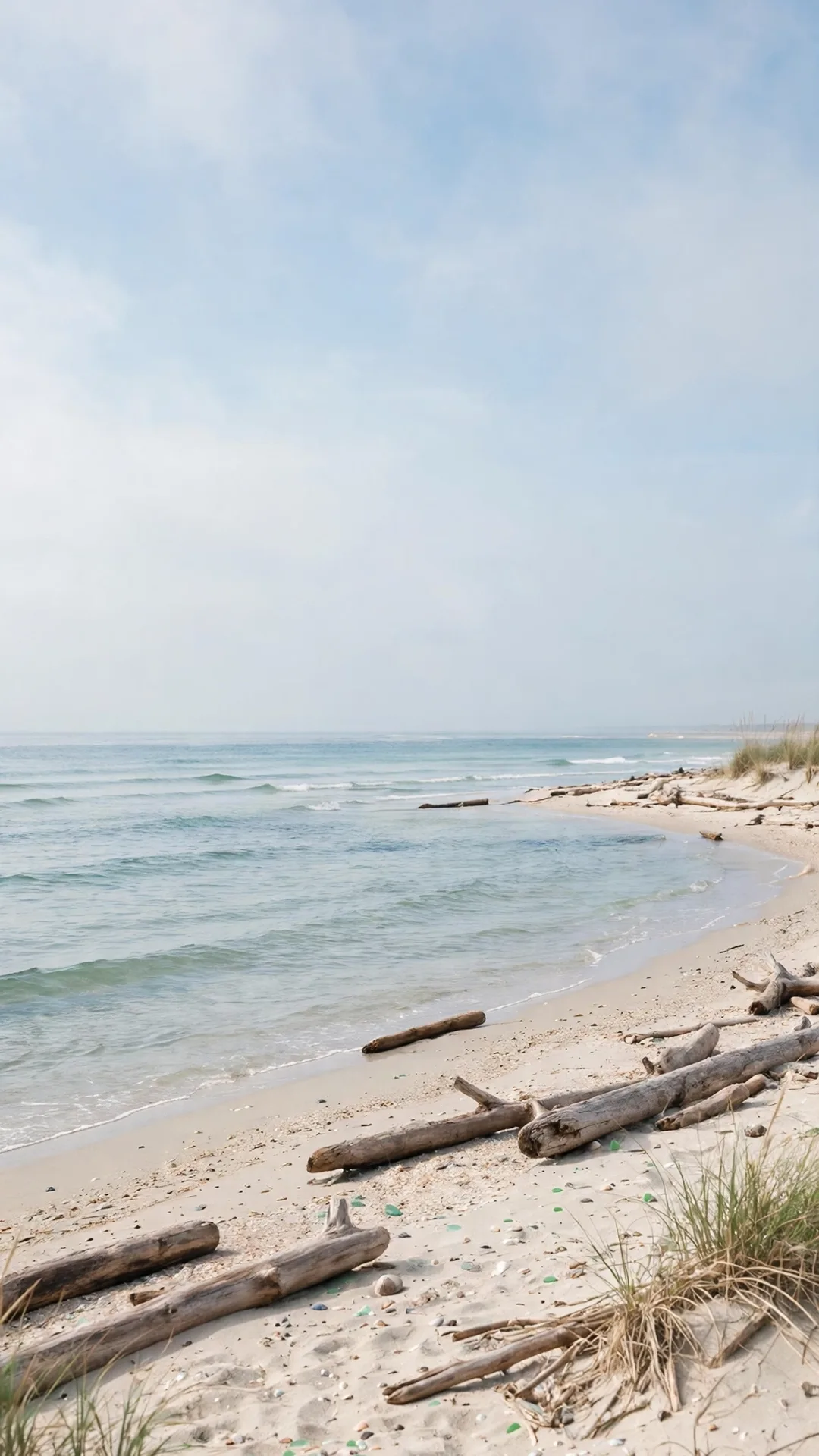
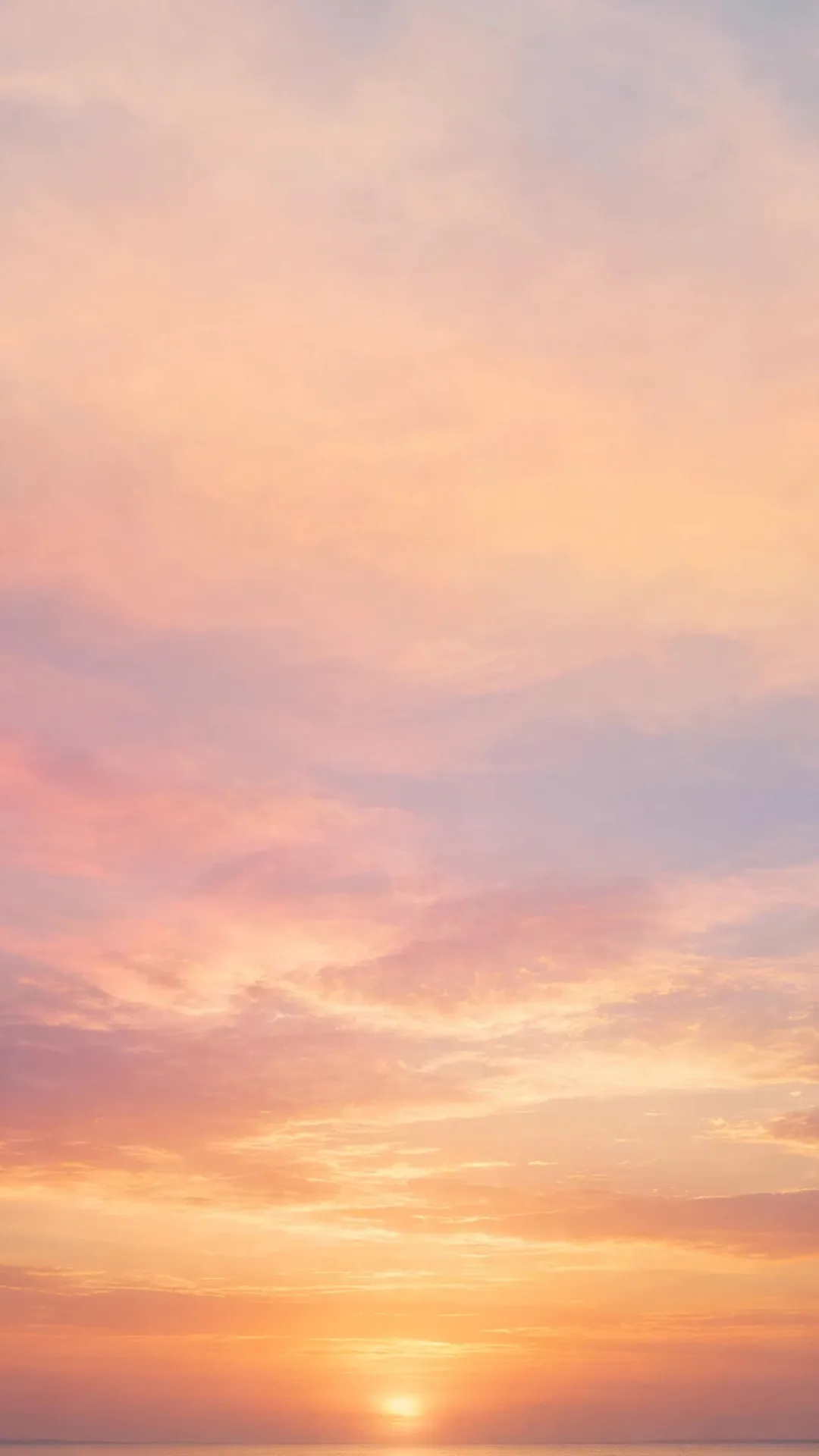
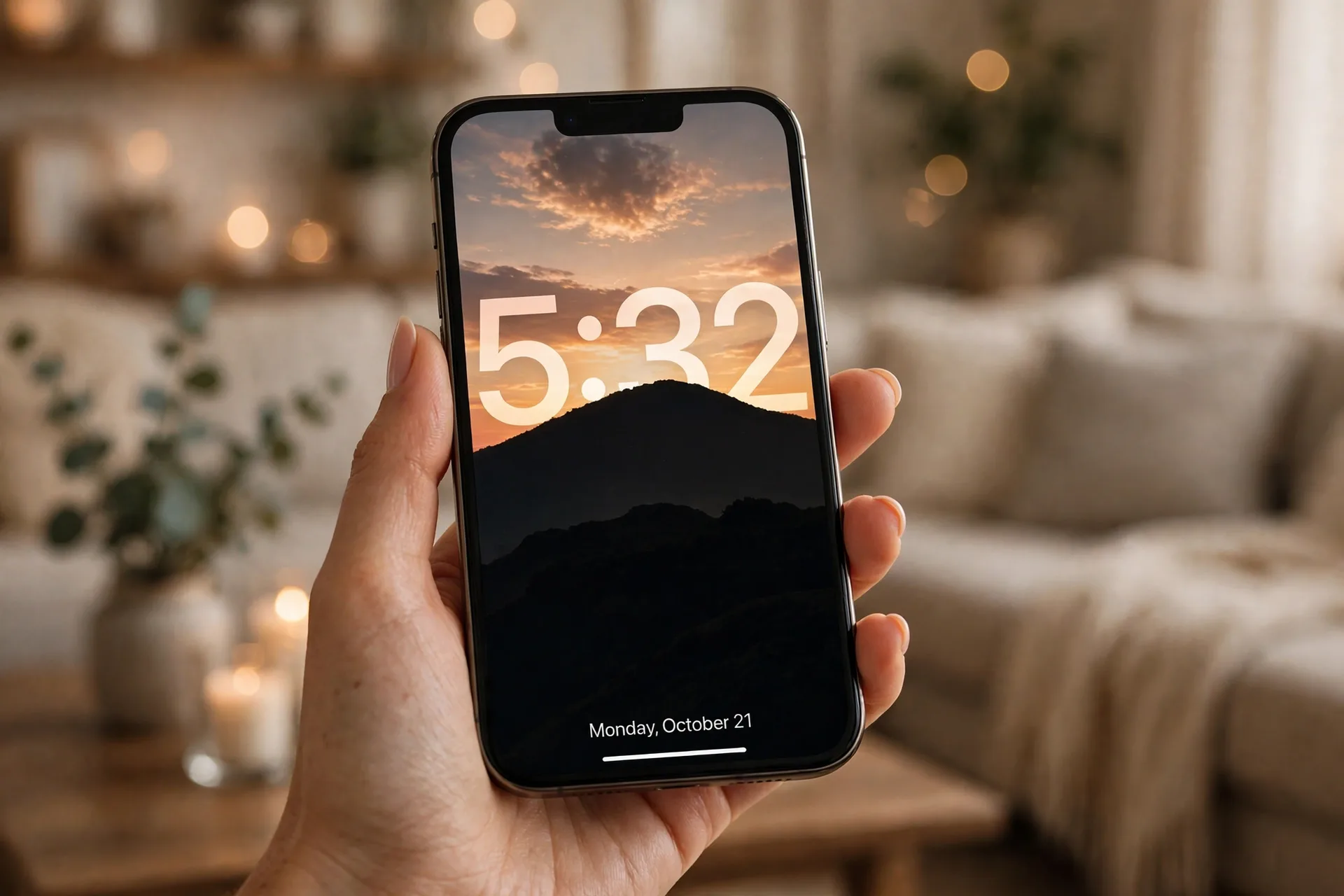
15. Sunset iPhone Wallpapers. The hour everyone photographs, permanently on your screen. Sunsets give you warm gradients that sit perfectly behind the clock, and the interesting part (the sun) usually sits low — so the crop almost never hurts them. See the Sunset iPhone Wallpapers collection.
Sky, Space & Kids’ Favorites
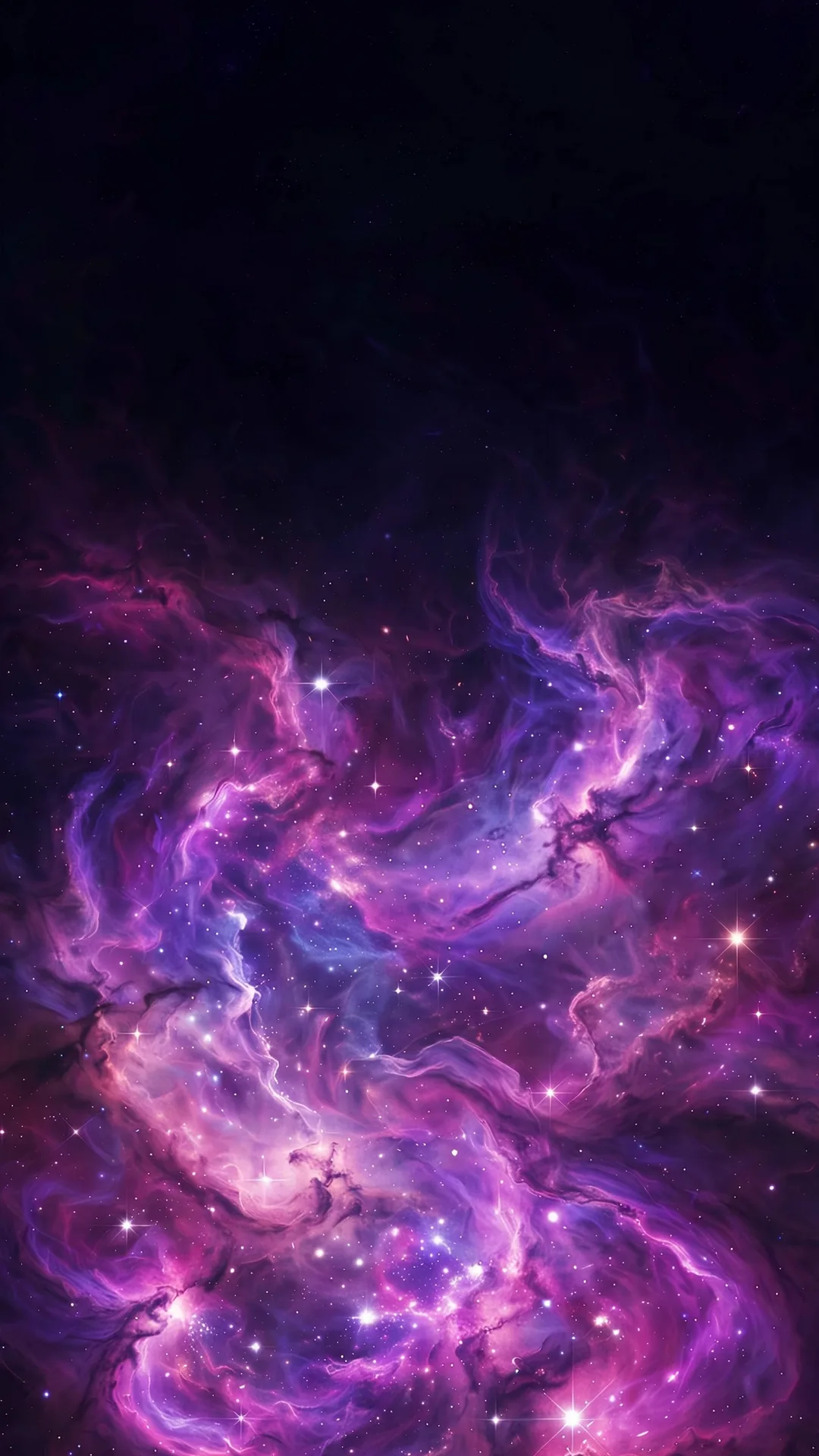
16. Galaxy iPhone Wallpapers. Nebulas, starfields, purple deep-space drama. Galaxy wallpapers are absurdly good on modern iPhone screens — deep blacks and bright stars are exactly what OLED displays were made for. See the Galaxy iPhone Wallpapers collection.
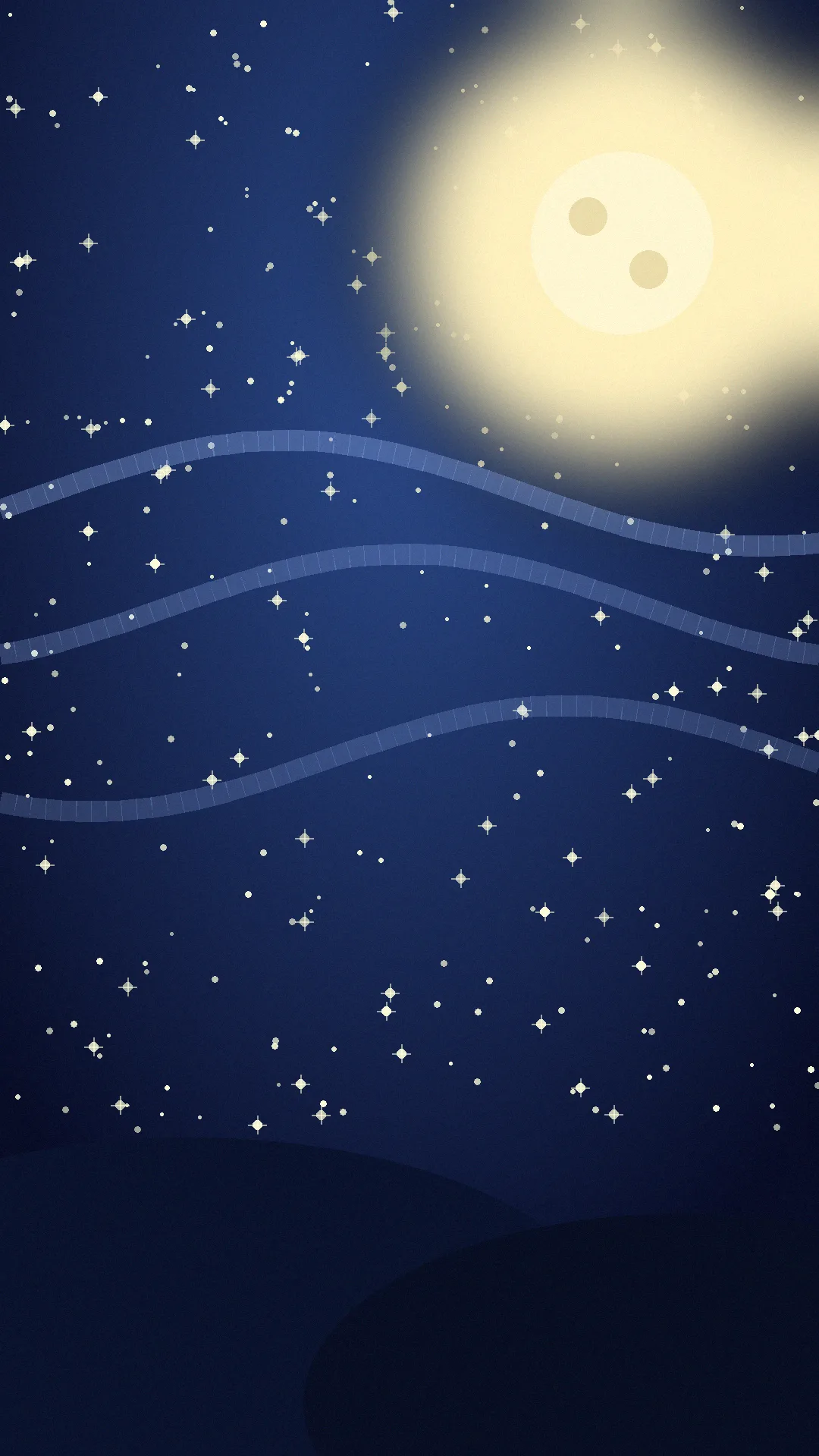
17. Starry Night iPhone Wallpapers. Galaxy’s dreamier sibling: painted night skies, constellations, a moon doing its best. Starry night makes the phone feel like a window instead of a machine — romantic in the old-fashioned sense. See the Starry Night iPhone Wallpapers collection.
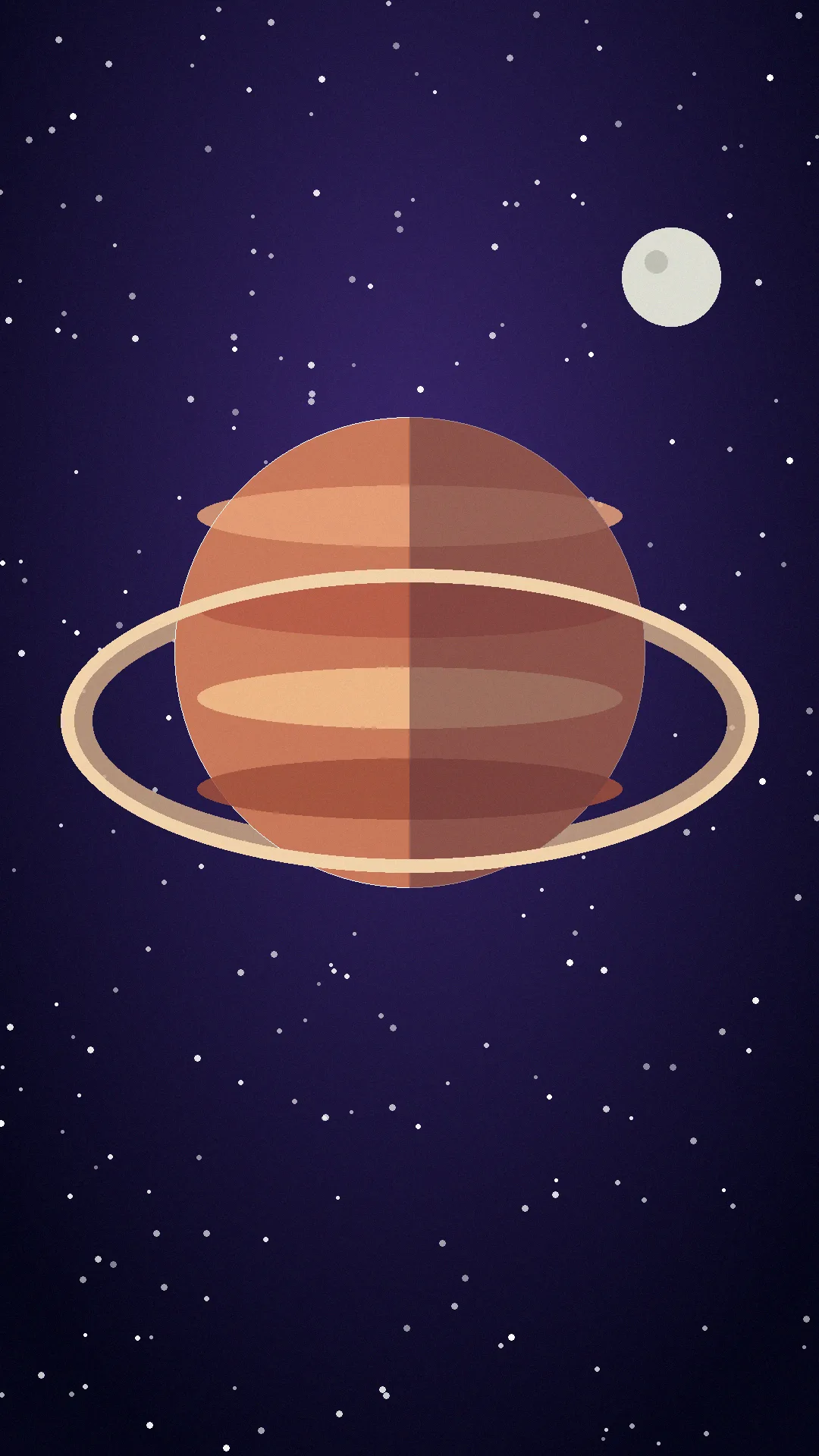
18. Planet iPhone Wallpapers. Big bold orbs — Earth, Saturn’s rings, stylized worlds floating in gradient space. One strong focal point on the lock screen, which plays beautifully with the Depth Effect: the clock can sit behind the planet’s edge. See the Planet iPhone Wallpapers collection.
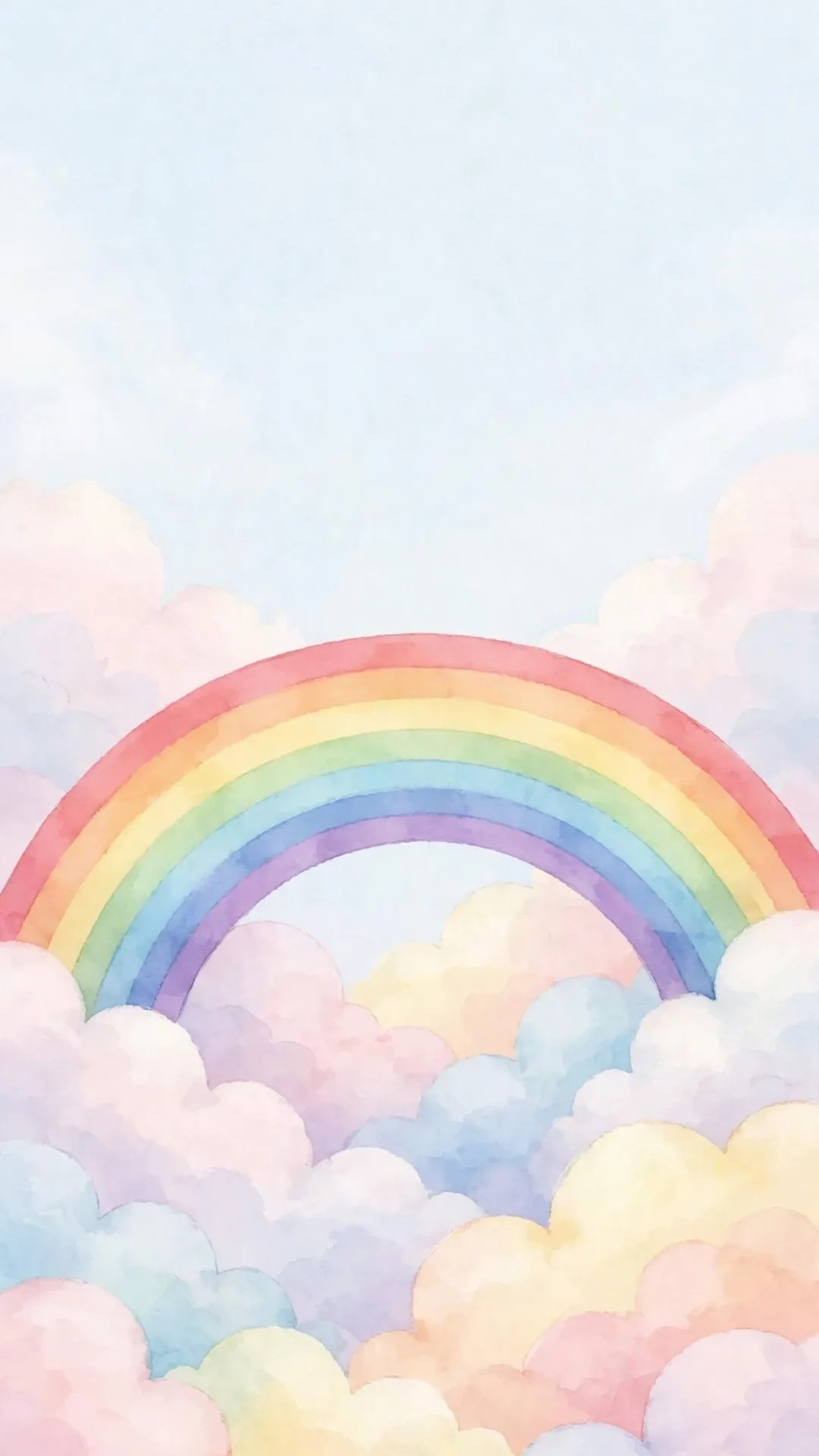
19. Rainbow iPhone Wallpapers. Pure joy, in arc form. Rainbows are the wallpaper my kids pick when I hand them the phone — bright, uncomplicated, impossible to be in a bad mood about. See the Rainbow iPhone Wallpapers collection.
20. Unicorn iPhone Wallpapers. Because sometimes you just need whimsy: pastels, sparkles, and a creature that exists solely to make a 4-year-old gasp. No aesthetic rules, no restraint required — this one is for fun and fun only. See the Unicorn iPhone Wallpapers collection.
Seasonal & Sweet Favorites
21. Autumn iPhone Wallpapers. Golden leaves, warm cider tones, and that first-crisp-morning feeling. Autumn is the season that looks best on a phone screen, because the colors are already a palette. These sit beautifully behind the clock and make every unlock feel like October, even in March. See the Autumn iPhone Wallpapers collection.
22. Ocean iPhone Wallpapers. Salt air in wallpaper form, and the calmest blue you can put on a screen: gentle waves, sea foam, pale sand. Ocean wallpapers are the ones I reach for on overstimulated days. The blue is genuinely restful between tasks, and the horizon line sits low enough that the clock never fights it. See the Ocean iPhone Wallpapers collection.
23. Pink iPhone Wallpapers. Soft, unapologetic pink: blush gradients, watercolor clouds, a petal or two. Pink is the wallpaper equivalent of a favorite sweater: it makes the whole phone feel warmer, and it flatters every app icon you own. The pale versions stay readable behind white clock text, which is the whole trick. See the Pink iPhone Wallpapers collection.
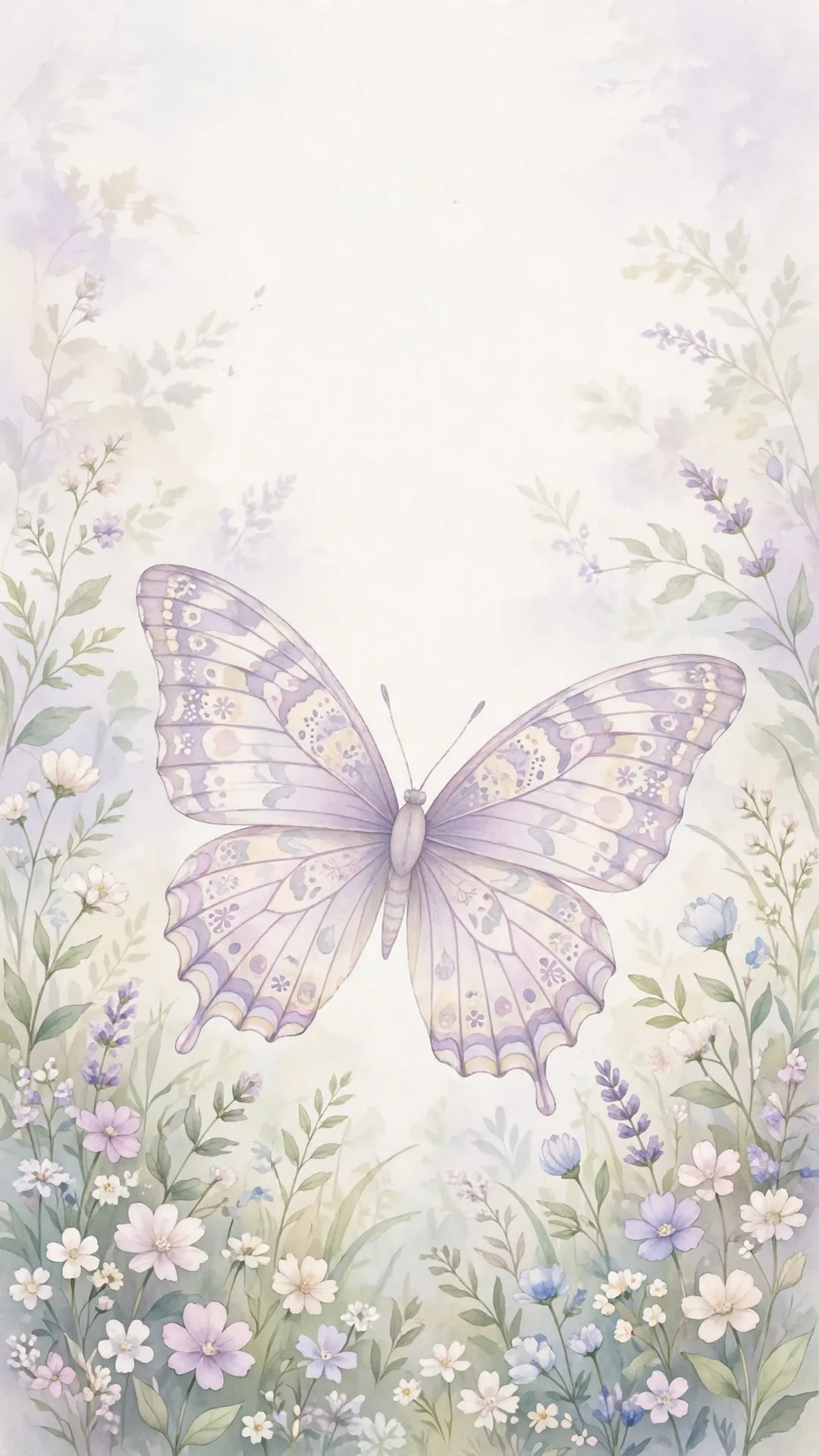
24. Butterfly iPhone Wallpapers. One big butterfly, soft pastels, a garden behind it. The wallpaper my 4-year-old picks every single time I hand her the phone. Butterflies give you a clear focal point that plays beautifully with the Depth Effect, and the wings are usually high enough that the clock sits underneath them instead of on top. See the Butterfly iPhone Wallpapers collection.
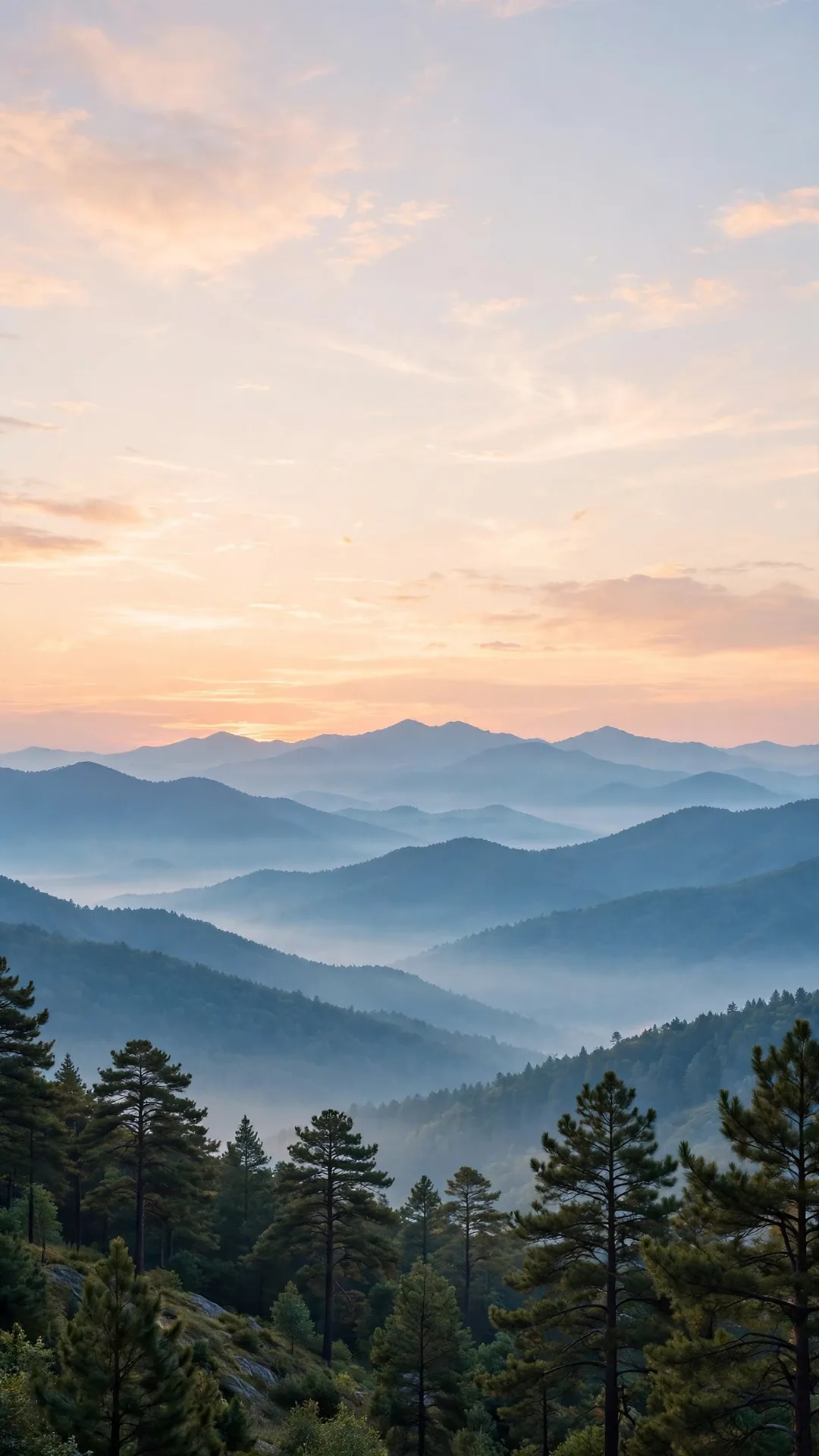
25. Mountain iPhone Wallpapers. Layered ridges at sunrise, pine trees in the lower third, a peach sky that glows on OLED. Mountains are the most vertical subject in nature, which is exactly why they fit a phone screen so well. The composition is already portrait, so nothing important ever gets cropped. See the Mountain iPhone Wallpapers collection.

Set It Up in Two Minutes
Three ways to set any wallpaper, all ending at the same screen. Pick whichever feels fastest.
The Settings route (most control). Open Settings, tap Wallpaper, then Add New Wallpaper. Choose Photos for your own picture — or Apple’s categories like Weather, Astronomy, Emoji, or Color. Pick your image, pinch to zoom and drag to position it behind the clock (swipe left or right to try filters like Black & White), tap Add in the top-right, then choose Set as Wallpaper Pair for both screens or Customize Home Screen to give your Home Screen a different look. Your old wallpapers aren’t deleted — they stay in the gallery, so you can switch back anytime.
The lock-screen route (fastest). Wake your phone but stay on the Lock Screen, then touch and hold an empty spot until your wallpaper gallery appears. Swipe through what you’ve already made, or tap the plus (+) to build a new one. Use this route when you just downloaded something and want it up in ten seconds.
The Photos route (already looking at the picture). If the image is open in Photos, tap Share and choose Use as Wallpaper — it jumps straight to the preview. And if you grabbed a wallpaper from the web: touch and hold the image, tap Save to Photos, then set it from there. Since iOS 16, each wallpaper is a “pair,” but you can give the Home Screen its own calmer look (a solid color or a blurred version) so icons stay readable while the lock screen carries the art.
The Right Size for Your iPhone
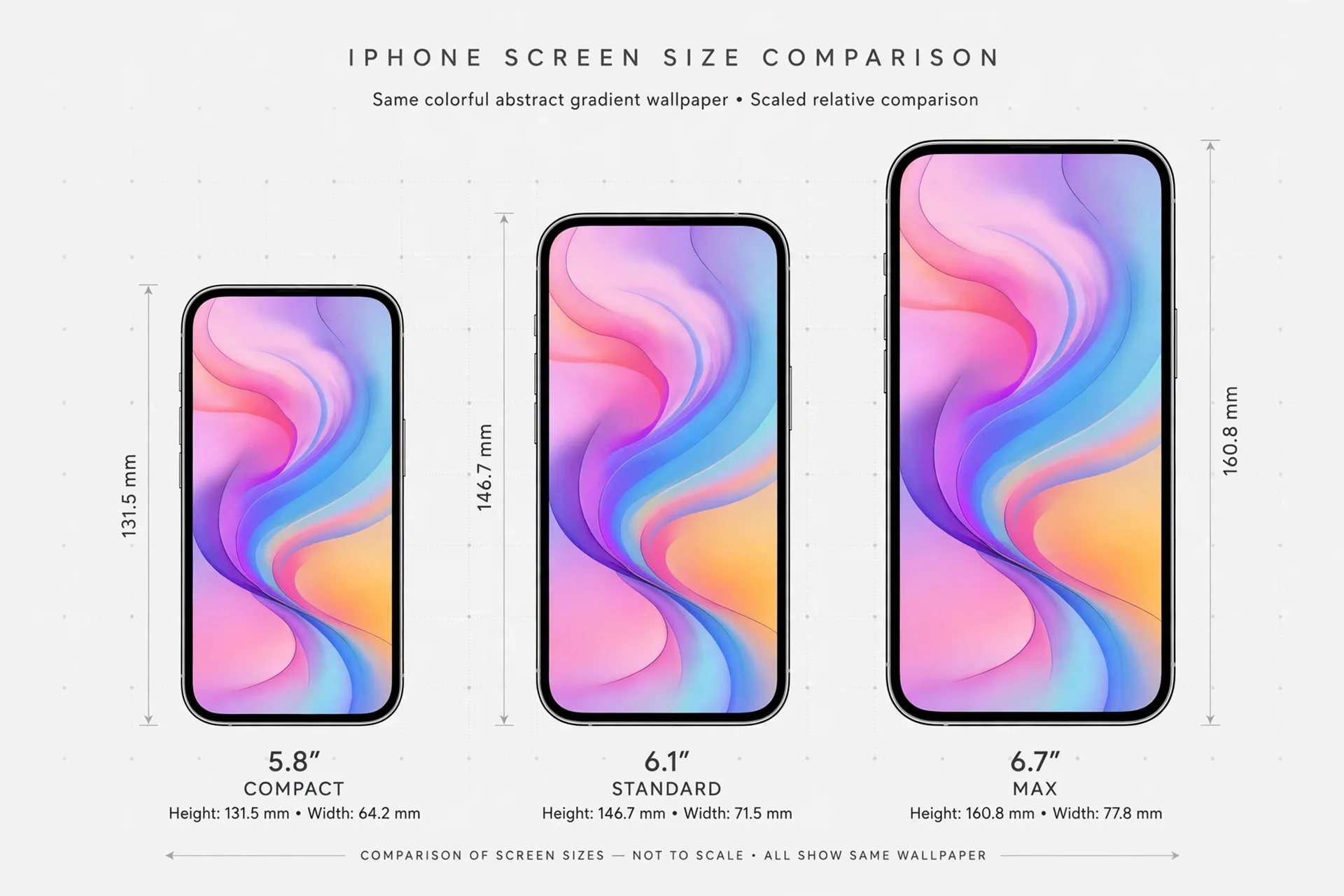
A blurry wallpaper is almost always a size problem, not a picture problem. The rule is simple: use a portrait image at your iPhone’s native resolution or larger. Smaller than your screen, iOS stretches it — that’s the blur; bigger is always safer, since iOS scales down gracefully. Every current iPhone uses roughly a 19.5:9 portrait ratio, so a tall portrait image crops the least.
Find your model below (from Apple’s published display specs):
| iPhone model | Best wallpaper size (portrait) |
|---|---|
| iPhone 16 Pro, 17, 17 Pro, 18 Pro | 1206 × 2622 px |
| iPhone 16 Pro Max, 17 Pro Max, 18 Pro Max | 1320 × 2868 px |
| iPhone 16, 15, 15 Pro, 14 Pro | 1179 × 2556 px |
| iPhone 16 Plus, 15 Pro Max, 15 Plus, 14 Pro Max | 1290 × 2796 px |
| iPhone 14, 13, 12, 16e, 17e | 1170 × 2532 px |
| iPhone 12 mini, 13 mini | 1080 × 2340 px |
| iPhone SE (2nd & 3rd gen) | 750 × 1334 px |
Two framing rules that save every wallpaper: keep faces, text, and the important part of the picture away from the edges (iOS crops to fill), and keep the subject clear of the top-center camera cutout and the clock sitting over the middle-top of your lock screen. Check the preview before you tap Add — that’s what it’s for. Landscape photos can work, but iOS enlarges and crops them hard — only use one with lots of open space around the subject.
Where to Find More (All Free)
The picks above are the curated start. When you want to hunt for your own, these are the free sources worth knowing: Unsplash and Pexels for high-resolution photography; Pinterest for curated aesthetic boards (search “iphone wallpaper” + your theme); Papers.co and the Zedge app, which has one of the largest mobile-wallpaper libraries; and artist-curated apps like Vellum for abstract and minimal designs. Two house rules for free hunting: always download the full-resolution version (never a thumbnail preview), and skip anything with a big watermark across the middle — it will look like a watermark on your phone forever.
Make It All Match
Photo Shuffle, for the commitment-phobes. Instead of one wallpaper, let iOS rotate through a set: choose Photo Shuffle when you tap Add New Wallpaper, pick your favorite photos, and set them to change when you tap, when you wake the phone, hourly, or daily. A new phone every morning, zero effort.
Live Photos, for the lock screen. Set a Live Photo as your wallpaper and the lock screen animates when you press and hold. Heads-up: it only animates on the Lock Screen, never the Home Screen — and it stops if Low Power Mode is on, so check that if yours freezes.
Depth Effect, for the fancy look. If your wallpaper has a clear subject — a planet, a flower, your kid’s head — iOS can layer the clock behind the subject for a 3D look. It’s automatic when the photo qualifies; just watch for it in the preview.
Dark Mode and widgets. Dark Mode deepens bright wallpapers and makes colors glow on OLED screens — try your pick with it on before deciding. And if icons clash with a busy background, the Customize Home Screen step has a Blur toggle that softens the image behind your apps. Widget apps like Widgetsmith build matching widgets that complete the look.
Quick Fixes
It’s blurry. The image is smaller than your screen — iOS enlarged it. Redownload the full-resolution version and reset it.
The subject got cropped. The subject sits too close to the edge, or the image’s ratio is far from 19.5:9. Pinch out in the wallpaper preview to shrink it, or re-download the portrait version.
It won’t animate (Live Photo). It’s the Home Screen wallpaper (animation is lock-screen-only), or Low Power Mode is on: Settings → Battery → Low Power Mode, off.
It looks different after setting. The preview shows exactly where the clock, widgets, and camera cutout land — reset and look this time if you skipped it.
I saved it but can’t find it. Safari saves to your camera roll — open Photos and check Recents. Third-party apps may have saved to the Files app instead.
Frequently Asked Questions
Are these wallpapers really free? Yes — every collection in this guide is a free download, no sign-up and no account. The external sources (Unsplash, Pexels, Pinterest, Zedge, Vellum, Papers.co) all offer free downloads as standard.
How do I set a picture as my iPhone wallpaper? Open Settings, tap Wallpaper, tap Add New Wallpaper, choose Photos, pick your picture, position it, tap Add, then Set as Wallpaper Pair. Or touch and hold your Lock Screen and tap the plus button.
What size should my iPhone wallpaper be? Match your model’s native portrait resolution or larger — for example 1206 × 2622 px on an iPhone 16 Pro/17, 1179 × 2556 px on an iPhone 16/15. The full table is above; portrait orientation crops the least.
Can I use different wallpapers for the lock screen and home screen? Yes — after tapping Add, choose Customize Home Screen instead of Set as Wallpaper Pair, and give the Home Screen its own image, color, or a blurred version of the lock-screen picture.
Where can I find cute wallpapers for my kid’s phone? Start with the kids’ favorites above — Rainbow, Unicorn, Star, and Galaxy are the ones ours reach for. Our dedicated Cute iPhone Wallpapers collection has twenty-one more, all free.
Your Screen, Your Mood
That’s the whole project: pick one of the twenty-five above (or hunt your own), save it at the right size, set it in two minutes, and enjoy it every one of the hundred times you unlock today. And when the season changes — because it always does, on phones as on everything — come back. The collections will still be here, still free, still sized right. Your phone is the most-visited room in your life. Hang something you love in it.
More iPhone wallpaper collections on MamaKinder